Language Selection in Unity

J.Gong
2026-03-02
1.35min
Language Selection in Unity
I didn’t expect to be writing a “Part 2” so soon! Last week I dived into the basics of adding multi-language support. Today, let’s talk about giving power back to the player: Language Selection.
Forcing Locale via Command Line
By default, Unity follows the system’s locale. But what if a player prefers an English UI regardless of their OS settings? Before you’ve even built a settings menu, you can offer a quick fix. Players can force a language by adding a launch option:
-language=en-US
Designing the Selection List
A good language selector should be intuitive. A gold standard is to include the language’s native name and a country flag to help users identify their choice at a glance.
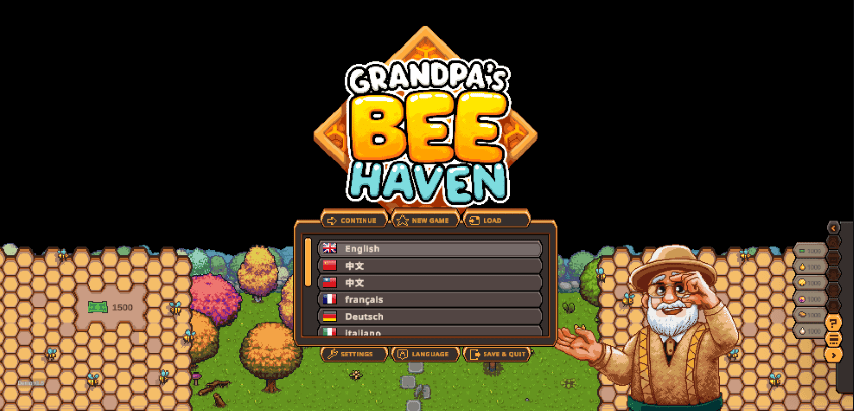
Tip: You can find a great collection of country flag sprites on GitHub.
1. Extending Locale Metadata
To link your flag sprites to Unity’s Locale information, you need to extend the Locale’s metadata. Create a LocaleIcon.cs script to hold your sprite data:
using System;
using UnityEngine;
using UnityEngine.Localization.Metadata;

[Metadata(AllowedTypes = MetadataType.Locale)]
[Serializable]
public class LocaleIcon : IMetadata
{
    public Sprite flag;
}
For more on this, check out the official Unity Documentation.
2. Initializing Locales
Since Unity’s Locale API is asynchronous, you’ll need to use a Coroutine to fetch the supported languages safely.
private IEnumerator InitLocales()
{
    // Wait for the localization system to initialize
    yield return LocalizationSettings.InitializationOperation;

    // Fetch and store available locales
    _locales = LocalizationSettings.AvailableLocales.Locales.ToArray().Reverse().ToList();
    /* ... Logic to populate your UI ... */
}
3. Extracting Display Data
When displaying the names, CultureInfo.NativeName often includes the country in brackets (e.g., “English (United States)”). You can use a simple split to keep the UI clean:
// Get the name before the brackets
string displayName = locale.Identifier.CultureInfo.NativeName.Split('(')[0].Trim();

// Retrieve our custom metadata
var iconData = locale.Metadata.GetMetadata<LocaleIcon>();
Sprite flag = iconData?.flag;
Saving Player Preferences
Finally, ensure the game remembers the player’s choice. Use PlayerPrefs to store the locale code and load it during the initialization sequence.
| Key | Purpose |
|---|---|
LanguagePrefsKey | Stores the localeCode (e.g., “en-US” or “fr-FR”) |
// Saving the selection
PlayerPrefs.SetString(LanguagePrefsKey, localeCode);

// Loading on startup
string savedCode = PlayerPrefs.GetString(LanguagePrefsKey, null);
By combining metadata with a simple UI list, you create a much more accessible experience for your international players. Happy coding!